Convert JPG to PDF for Free in 2 ways (Complete Guide)
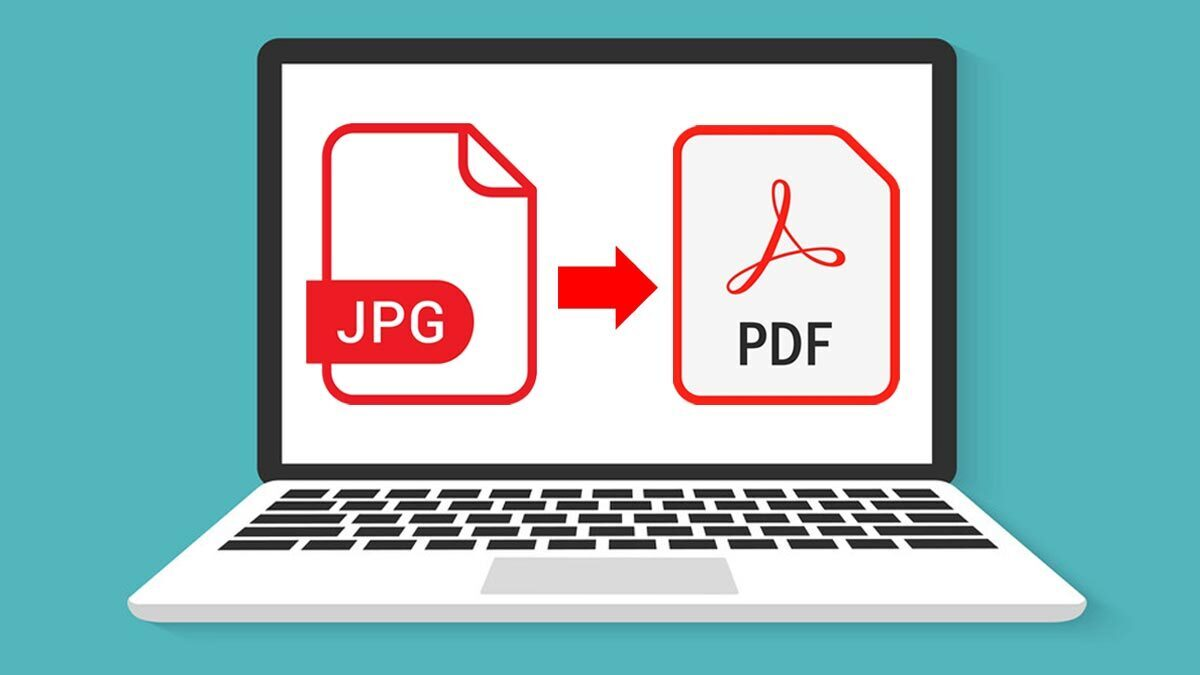
These days, we handle images all the time—whether it’s assignments, scanned notes, or important documents. However, when it comes to sharing or organizing them, JPG files aren’t always the most convenient option.
That’s exactly why many people prefer to convert JPG to PDF.
Instead of sending multiple images separately, a PDF lets you combine everything into one clean, organized file. As a result, your work looks more professional and is much easier to manage.
In this guide, you’ll learn how to convert JPG to PDF for free, using both online tools and offline methods.

What’s the Difference Between JPG and PDF?
Before we get into the steps, it’s helpful to quickly understand the difference.
A JPG file is an image format made of pixels. It’s great for photos because it keeps file sizes small. However, it doesn’t offer much flexibility when you need structure or organization.
On the other hand, a PDF file is designed for documents. It keeps everything—images, layout, and formatting—consistent across all devices.
Because of this, PDFs are widely used for:
- Assignments
- Reports
- Official documents
- Study material
Why Convert JPG to PDF?
At first, converting images might seem unnecessary. But once you try it, the benefits become clear.
For example, instead of sending five different images, you can simply send one PDF file. Not only does this save time, but it also looks much more professional.
Here’s why people often convert JPG to PDF:
- Combine multiple images into one file
- Keep documents organized
- Make files easier to share
- Improve presentation quality
- Ensure compatibility across devices
In short, it’s a small step that makes a big difference.
Method 1: Convert JPG to PDF Online (Fastest Way)
If you’re looking for the easiest solution, online tools are definitely the best option.
Not only are they quick, but they also don’t require any installation. Everything works directly in your browser.
Step-by-Step Process
- Open an online JPG to PDF converter
- Upload your JPG image(s)
- Arrange them in order
- Click Convert
- Download your PDF
For a smooth experience, you can try:
It’s simple, fast, and works instantly—especially helpful when you need quick results.
Alternatively, you can also check tools like
👉 https://smallpdf.com/jpg-to-pdf
👉 https://www.ilovepdf.com/jpg_to_pdf
These are widely used and reliable as well.
Method 2: Convert JPG to PDF Offline
On the other hand, if you don’t want to rely on the internet, offline methods work just as well.
In fact, both Windows and Mac already provide built-in options.
On Windows
Interestingly, Windows includes a feature called Microsoft Print to PDF.
Here’s how to use it:
- Select your JPG files
- Right-click and click Print
- Choose Microsoft Print to PDF
- Adjust settings if needed
- Save your PDF
Although it may sound unusual, this method is actually very effective.
On Mac
Meanwhile, Mac users can use the Preview app.
Steps:
- Open images in Preview
- Select all images
- Click File → Print
- Choose Save as PDF
This method is quick, simple, and doesn’t require any extra tools.
Combine Multiple JPG Files into One PDF
In many cases, you won’t just convert one image—you’ll want to merge multiple JPG files into a single PDF.
This is especially useful for:
- Assignments
- Notes
- Scanned documents
- Reports
Thankfully, tools like https://convertjpg.io make this process very straightforward. Just upload your images, arrange them properly, and convert.
Tips for Better Results
Even though the process is simple, a few small improvements can make your PDF look much better.
For instance, always try to use high-quality images. Low-resolution files can appear blurry in the final PDF.
Also, make sure your images are in the correct order before converting. Otherwise, your document may look disorganized.
Here are a few quick tips:
- Use clear and high-resolution images
- Keep image sizes consistent
- Arrange files properly
- Choose the right page size
- Double-check orientation
These small steps can significantly improve the final output.
When Should You Use JPG to PDF?
You might be surprised how often this comes in handy.
For example, students use it for assignments, while professionals use it for reports and presentations. It’s also useful for keeping digital records of important documents.
Common use cases include:
- School and college work
- Office documents
- Scanned paperwork
- Portfolios
- Study notes
Because PDFs are widely accepted, they make sharing much easier.
Convert JPG to PDF Instantly
If you want a quick and reliable option, you can use:
Just upload your images, click convert, and download your PDF within seconds.
Final Thoughts
All things considered, converting JPG to PDF is a simple yet powerful way to improve how you manage your files. It helps you stay organized, present your work clearly, and share documents more efficiently.
The best part is that you don’t need any technical skills. Whether you choose an online tool or a built-in feature, the process is straightforward.
So next time you’re dealing with multiple images, try converting them into a single PDF—it’s quicker, cleaner, and much more professional.