How to Convert JPG to PNG for Free
We all work with images almost every day—whether it’s for school, social media, or websites. But sometimes, a JPG image just doesn’t give you the quality or flexibility you need.
Maybe the background isn’t clean.
Maybe the image looks slightly blurry.
Or maybe you simply need better quality.
That’s usually the moment when people start looking for a way to convert JPG to PNG.
And honestly, once you understand the difference, it makes perfect sense.
In this guide, we’ll walk through easy, practical ways to convert JPG to PNG for free, along with tips to help you get the best possible results.
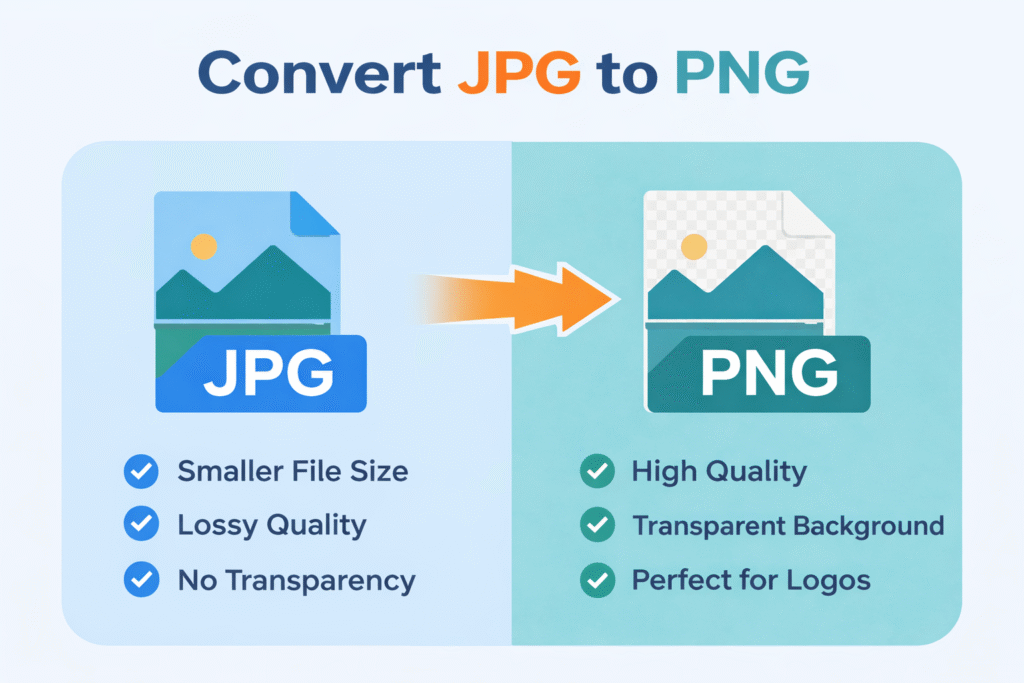
What’s the Difference Between JPG and PNG?
Before jumping into conversion methods, let’s quickly clear up something important.
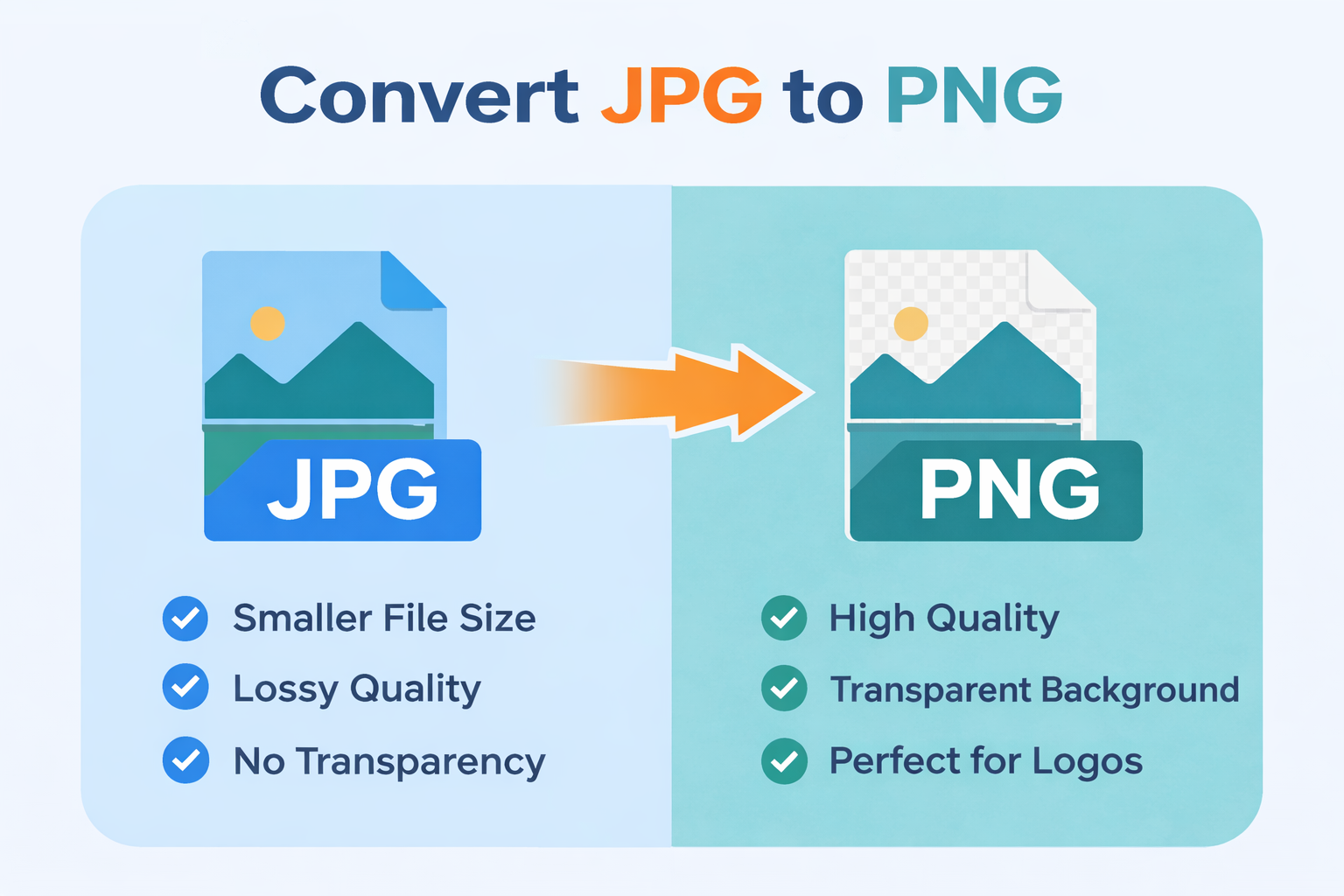
A JPG file is designed to reduce file size. That’s great for saving space, but it often comes at the cost of image quality. Because of compression, you might notice slight blurriness or loss of detail.
On the other hand, a PNG file keeps much more detail. It uses lossless compression, which means the image quality stays intact.
Even more importantly, PNG supports transparent backgrounds—something JPG simply cannot do.
That’s why PNG is often preferred for:
- Logos
- Graphics
- Screenshots
- Web design elements
Why Convert JPG to PNG?
At first, converting might seem unnecessary. But once you run into quality issues, the need becomes obvious.
For example, if you’re working on a logo or graphic, even a small loss in quality can make a big difference.
Here’s why people convert JPG to PNG:
- Better image quality
- No compression loss
- Supports transparent backgrounds
- Ideal for editing and design work
- Cleaner visuals for websites
So, if you care about clarity and detail, PNG is often the better choice.
Method 1: Convert JPG to PNG Online (Fastest & Easiest)
Let’s be honest—most of us just want a quick solution. And that’s exactly where online tools come in.
The best part? You don’t need to install anything. Everything happens right in your browser.
Step-by-Step Process
- Open a JPG to PNG converter
- Upload your JPG image
- Click the Convert button
- Download your PNG file
If you want something simple and reliable, you can use:
It’s designed to be fast and easy. Within seconds, your image is converted without any confusion or extra steps.
You can also explore other tools like:
👉 https://image.online-convert.com/convert-to-png
👉 https://cloudconvert.com/jpg-to-png
Method 2: Convert JPG to PNG Offline
On the other hand, if you prefer not to rely on the internet, there are offline options too.
Using Built-in Tools (Simple Method)
Sometimes, you don’t even need special software.
For example, on Windows:
- Open your JPG image in Paint
- Click File → Save As
- Choose PNG format
- Save the file
Similarly, on Mac:
- Open the image in Preview
- Click File → Export
- Select PNG format
- Save
While this method is simple, it works best for basic conversions.
When Should You Use PNG Instead of JPG?
This is something many people overlook.
You don’t always need PNG—but in certain cases, it makes a huge difference.
For example:
- When working with logos
- When you need transparent backgrounds
- When editing images
- When quality matters more than file size
However, for regular photos, JPG is still perfectly fine.
So, it really depends on what you’re trying to achieve.
Tips for Better JPG to PNG Conversion
Even though conversion is easy, a few small tips can improve your results significantly.
First of all, always start with the highest quality JPG possible. If the original image is low quality, converting it won’t magically fix it.
Secondly, avoid over-editing after conversion. Too many edits can affect clarity.
Here are a few quick tips:
- Use high-resolution images
- Avoid heavily compressed JPG files
- Choose PNG when quality matters
- Keep file sizes in mind (PNG can be larger)
These small steps can make a noticeable difference.
Where PNG Files Are Commonly Used
PNG files are everywhere, especially in digital design.
You’ll often see them used for:
- Website graphics
- Logos and branding
- UI elements
- Social media visuals
- Transparent images
Because they maintain quality, they’re a favorite among designers and developers.
Convert JPG to PNG Instantly
If you want a quick and reliable solution, you can use:
Just upload your image, convert it, and download the PNG version within seconds.
No complicated steps. No extra effort.
Final Thoughts
At the end of the day, converting JPG to PNG is all about improving quality and flexibility. While JPG is great for everyday use, PNG gives you more control—especially when working with graphics and design.
The good news is that the process is simple, and you don’t need any technical skills to get started.
So next time your image doesn’t look quite right, try converting it to PNG—you might be surprised by the difference.
🔗 Related Guides
If you found this helpful, you might also like:
- How to convert JPG to PDF (for documents and sharing)
- How to convert JPG to SVG (for scalable graphics)