How to Convert JPG to GIF for Free (Complete Guide)
If you’ve ever wondered how to Convert JPG to GIF, you’re not alone. At first, it might sound a bit technical, but in reality, it’s much simpler than most people expect.
Sometimes, a static image just doesn’t feel enough.
You might want something more eye-catching—something that moves, grabs attention, or simply explains things better. That’s usually when people start thinking about GIFs.
In this guide, we’ll walk through different ways to convert JPG to GIF for free, whether you’re creating a simple image or a short animation.
Understanding JPG and GIF (Why They’re Different)
Before jumping into the process, it helps to understand what you’re working with.
A JPG image is designed for photographs. It supports millions of colors and is perfect for detailed pictures. However, it’s completely static—meaning it cannot move or animate.
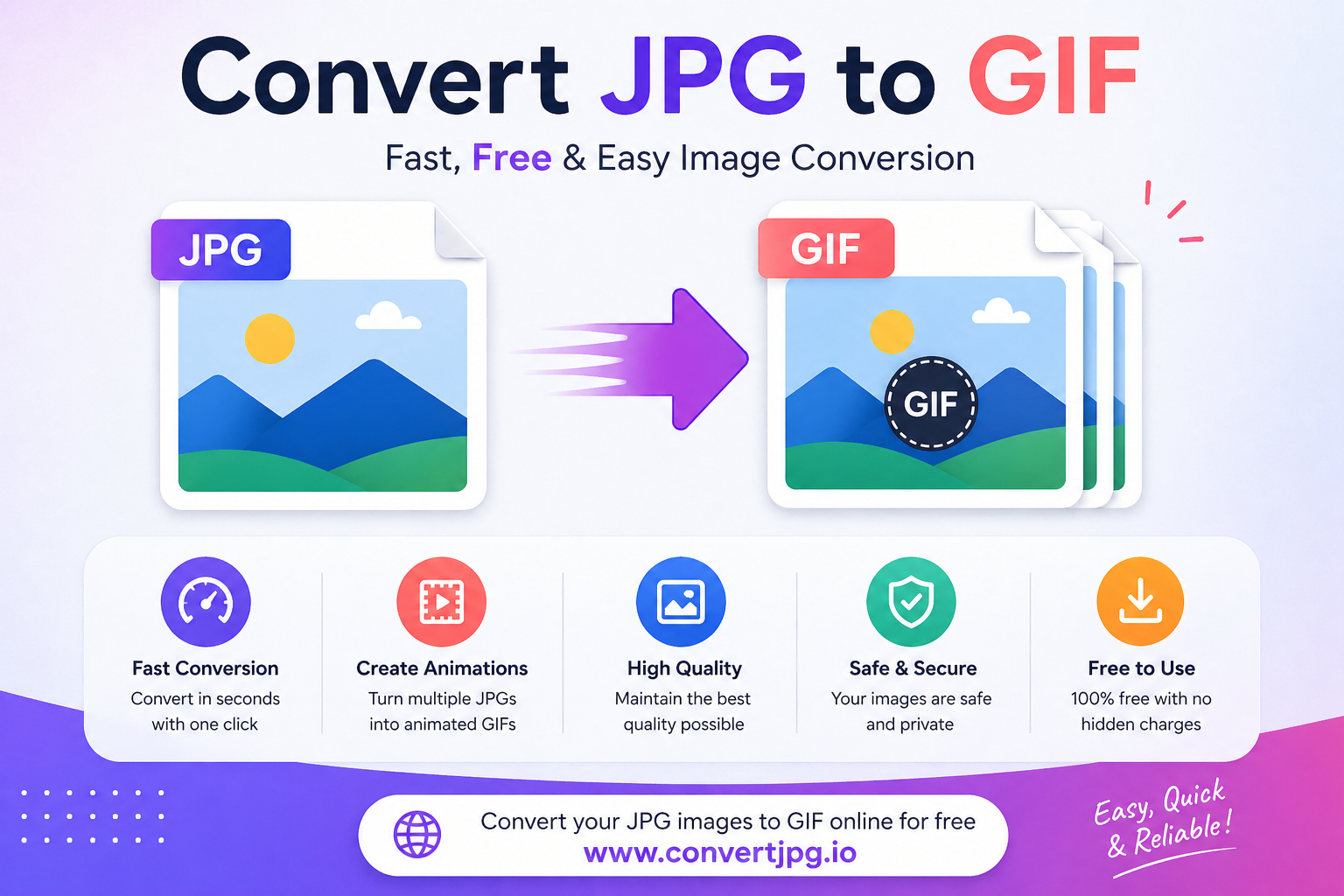
A GIF, on the other hand, is much simpler in terms of color, but it has one major advantage: it supports animation.
Because of this, GIFs are widely used for:
- Short animations
- Memes and reactions
- Quick tutorials
- Lightweight web graphics
So, in a way, converting JPG to GIF isn’t just about changing the format—it’s about changing how the image behaves.
Why Convert JPG to GIF?
Now you might be thinking—why not just stick with JPG?
Well, there are situations where GIF is clearly the better option.
For example, if you want to show a process step-by-step, a GIF can explain it much better than a single image. Similarly, if you’re creating content for social media, a moving image naturally attracts more attention.
Here are a few practical reasons:
- Turn static images into simple animations
- Create engaging visual content
- Make tutorials easier to follow
- Use lightweight animated graphics on websites
- Share fun or expressive visuals
So while JPG is great for clarity, GIF adds a layer of interaction and engagement.
Method 1: Convert JPG to GIF Online (Fast & Simple)
Let’s start with the easiest method.
Online tools are by far the most convenient option. You don’t need to install anything, and the whole process takes just a few seconds.
Step-by-Step Process
- Open a JPG to GIF converter
- Upload your JPG image (or multiple images)
- Adjust settings like speed (if available)
- Click Convert
- Download your GIF file
For a quick and smooth experience, you can use:
It’s simple, fast, and beginner-friendly—perfect if you just want to get things done without any hassle.
You can also explore:
👉 https://ezgif.com/jpg-to-gif
👉 https://cloudconvert.com/jpg-to-gif
Method 2: Create an Animated GIF from Multiple JPG Images
This is where things become more interesting.
Instead of converting just one image, you can combine several JPG files to create a moving GIF animation.
For example, you can:
- Show steps of a process
- Create a mini slideshow
- Animate a design sequence
How it Works
- Upload multiple JPG images
- Arrange them in the correct order
- Set animation speed (fast or slow)
- Convert to GIF
The result is a short animation that plays in a loop.
This method is especially useful for:
- Tutorials
- Social media posts
- Educational content
Method 3: Convert JPG to GIF Using Software
Although online tools are convenient, some users prefer offline options.
Software like Photoshop or dedicated GIF tools can also create GIFs from JPG images. However, these tools usually offer more advanced features, which may not be necessary for beginners.
Basic idea:
- Import images
- Arrange frames
- Export as GIF
If you just need a quick conversion, online tools are usually the better choice.
Tips for Better JPG to GIF Conversion
Even though converting is easy, getting a good-looking GIF takes a bit of attention.
First of all, remember that GIFs have limited colors. This means detailed photos may lose quality after conversion.
Because of that, simpler images tend to work much better.
Here are some helpful tips:
- Use images with clear shapes and fewer colors
- Avoid overly detailed photographs
- Keep image size reasonable
- Adjust animation speed carefully
- Don’t use too many frames (it can make the file heavy)
These small adjustments can make a huge difference in the final result.
When Should You Use GIF (And When Not To)?
This is something many people overlook.
GIFs are great—but they’re not always the best choice.
Use GIF when:
- You need animation
- You want to explain a process visually
- You’re creating engaging content
- You need lightweight animations
Avoid GIF when:
- You’re working with high-quality photos
- You need detailed color accuracy
- You want maximum image clarity
In short, GIF is about movement and simplicity, not detail.
Where GIFs Are Commonly Used
You’ve probably seen GIFs everywhere, even if you didn’t notice.
They’re commonly used in:
- Social media posts
- Messaging apps
- Tutorials and guides
- Website elements
- Reaction images
Because they load quickly and loop automatically, they’re perfect for grabbing attention.
Convert JPG to GIF Instantly
If you’re looking for a quick and reliable option, you can try:
Just upload your image, convert it, and download your GIF in seconds.
No complicated setup. No technical skills needed.
Final Thoughts
At the end of the day, converting JPG to GIF is all about adding life to your images. While JPG works perfectly for static visuals, GIF brings movement, creativity, and engagement.
The best part is that it’s incredibly easy to do. With just a few clicks, you can turn ordinary images into something much more dynamic.
So whether you’re creating content, explaining a process, or just experimenting, GIFs can be a fun and effective tool.
And once you start using them, you’ll quickly see how powerful even a simple animation can be.